

Accessibility
Dopple’s SDK includes built-in support for keyboard controls and screen readers via ARIA attributes and live regions, to help ensure the 3D experiences you build are compliant and accessible by all users. These features are enabled by default, but may be turned off if you wish to implement your own accessibility support.
Keyboard Controls
Section titled “Keyboard Controls”When the canvas has been clicked or receives focus, keyboard controls will be activated so that users can rotate, pan, and zoom the camera around the 3D product using the arrow and plus/minus keys.
 Rotate
 Pan
Pan
 Zoom
Zoom
- Orbit — Use the arrow keys (←, ↑, →, ↓) to rotate the camera.
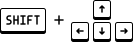
- Trucking — Hold Shift and use the arrow keys to pan the camera.
- Dolly — Use the plus and minus keys (+, -) to zoom in and out.
Keyboard controls are enabled by default but may be disabled by specifying keyboardControls: false in the additional options when first initializing your dopple instance.
const dopple = new DoppleXR({ /* ... */ options: { keyboardControls: false // Prevent keyboard from controlling the camera }});ARIA Attributes
Section titled “ARIA Attributes”By default, Dopple will create visually-hidden elements for an ARIA label, an ARIA description, and a live region for updates to the scene that should be announced to screen readers, which will all be injected into the container element alongside the <canvas>.
After creating a new dopple product instance, the aria property can be used to access these elements, update their content, and make screen reader announcements.
const dopple = new DoppleXR({ /* ... */ });
dopple.aria.label = "3D viewer for [product name]";dopple.aria.description = "Longer description for [product name] (or its current state) here";
await dopple.load();dopple.run();
dopple.aria.announce() = "Product configuration has been updated to XYZ";
Now, once dopple.run() has been called, the resulting HTML that gets injected into the Dopple container element will output the ARIA elements accordingly.
<div id="dopple-container">  <canvas role="application" aria-labelledby="dopple-aria-label" aria-describedby="dopple-aria-description"></canvas>
  <!-- ARIA elements -->  <div>    <div id="dopple-aria-label">      3D viewer for [product name]    </div>    <div id="dopple-aria-description">      Longer description for [product name] (or its current state) here    </div>    <div role="region" aria-label="3D scene updates">      <span id="dopple-aria-announcer" role="status" aria-atomic="true">        Product configuration has been updated to XYZ      </span>    </div>  </div></div>
In cases where you may want to prevent these elements from being created, you can specify aria: false in the additional options when first initializing your dopple instance.
const dopple = new DoppleXR({ /* ... */ options: { aria: false // Prevent ARIA elements for Dopple's canvas from being created }});ARIA Label
Section titled “ARIA Label”The ARIA label serves as a name for the <canvas> element that your 3D product is rendered onto. Commonly, this label may be just the name of the product itself, or may note that it is an interactive 3D render of the product.
dopple.aria.label = "Luggage";dopple.aria.label = "3D luggage model";dopple.aria.label = "Customizable 3D luggage product";ARIA Description
Section titled “ARIA Description”The ARIA description provides a way to further describe or annotate the 3D product in more detail (such as its current state or configuration). For products with simple configurability, or a “main” configuration state, the ARIA description could be used to describe that current configuration.
dopple.aria.description = "A blue fabric sofa with chaise lounge added on";Then, for example, if the color is changed or an add-on removed, you could trigger the description to update accordingly.
dopple.aria.description = "A beige fabric sofa with no add-ons included";This provides one easy way for users with assistive technologies to quickly “see” the current state of the product at any time.
Live Region Updates
Section titled “Live Region Updates”ARIA live regions are used to announce dynamic changes that occur on a page to screen readers. When building a 3D product configurator on your site, if there are changes that would be visually apparent to users who can see the 3D product but not necessarily obvious to users using assistive technologies, you may use the announce() method to trigger an update to the live region.
Examples of things to announce may include any updates to the product configuration or camera view that non-sighted users may not be aware of.
dopple.aria.announce("Product color updated to green");dopple.aria.announce("View from stage left");The current live region content can be also be accessed at any time using dopple.aria.liveRegionContent (note: this property is read-only; use announce() to make changes to the live region content).
console.log(dopple.aria.liveRegionContent); // "Product color updated to green"Full Code Example
Section titled “Full Code Example”<html> <head> <script type="module"> import { DoppleXR } from "https://builds.dopple.io/packages/dopple-sdk@latest/dopple-sdk.js";
// Initialize Dopple const dopple = new DoppleXR({ container: document.getElementById("dopple-container"), owner: "my-org", workspace: "my-workspace", projectName: "luggage-example", productVersion: "1", selection: {}, });
// Set an initial ARIA label & description dopple.aria.label = "Interactive 3D model of Dopple's luggage demo product"; dopple.aria.description = "Gray travel luggage shown closed with packing cubes included";
await dopple.load(); dopple.run();
// Announce the angle that the product is being viewed from when the camera stops moving dopple.controls.addEventListener("rest", () => { const radToDeg = (radians) => radians * (180 / Math.PI); const horizontalAngle = radToDeg(dopple.controls.normalizeRotations().azimuthAngle); const verticalAngle = radToDeg(dopple.controls.normalizeRotations().polarAngle);
// Prefix "upper" or "lower" if the camera is mostly above or below the product let prefix = ""; if (verticalAngle < 45) prefix = "upper-"; else if (verticalAngle > 135) prefix = "lower-";
// Determine if the camera is viewing from the front, left/right side, or back let view = "front"; if (horizontalAngle < -135 || horizontalAngle > 135) view = "back"; else if (horizontalAngle < -45) view = "right"; else if (horizontalAngle > 45) view = "left";
// Announce the final angle to screen readers dopple.aria.announce(`Viewing from stage ${prefix}${view} angle`); }); </script> </head> <body> <div id="dopple-container"></div> </body></html>